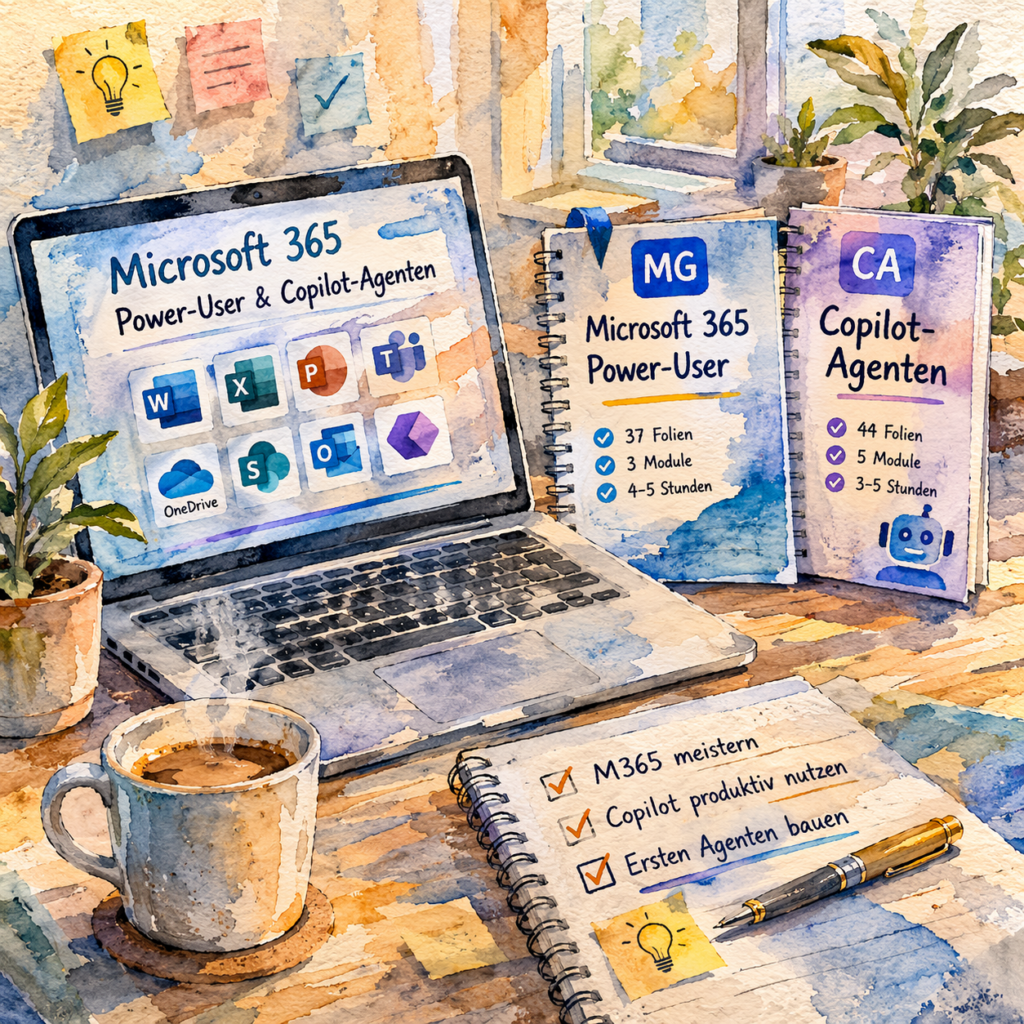
What if AI were your personal M365 trainer?
Other courses explain M365 and Copilot. These courses are moderated by an LLM (Claude or ChatGPT) as your personal trainer. The presentation slides serve as the visual anchor while the language model guides you through explanations, exercises, and direct feedback. From the very first minute you work live on your own tasks — not on generic examples.| Traditional M365 Training | These Courses |
|---|---|
| 💸 500–2,000 € per person | ✅ Completely free, all files immediately available |
| 📅 Date-dependent, group format | ✅ Any time, at your own pace, individual coaching |
| 👨🏫 Human trainer explains tools | ✅ LLM moderates, explains, asks questions, gives feedback |
| 🔄 Separate training for Power Users and Agents | ✅ One system, two courses, one consistent thread |
| 📋 Generic examples with no relation to your own work | ✅ Your real tasks from minute one |
| 📬 Materials sent by email afterward | ✅ All files available for immediate download, no registration |
What will you learn? Two courses, one system
The courses are designed to build on each other, but can also be used independently.| 📘 MG – Microsoft 365 Power User | 🤖 CA – Copilot Agents | |
|---|---|---|
| Content | OneDrive, SharePoint, Teams, Outlook, Copilot in M365 Apps, Power Automate | Agent basics, workflow agents, Copilot Studio, governance |
| Slides | 37 slides · 3 modules | 44 slides · 5 modules |
| Duration | approx. 3–5 hours | approx. 3–5 hours |
| Prerequisites | An M365 account (Business Standard is enough); the Copilot features in Module 2 additionally require the Copilot add-on | MG recommended, but not required; the concepts can be learned without a licence, hands-on practice needs the Copilot add-on |
| Result | Use M365 confidently, deploy Copilot strategically | Build your own Copilot Agent for your team |
Who are these courses designed for?
The courses require no technical prerequisites, just an active M365 account:- M365 beginners and occasional users who work with Teams, Outlook, and OneDrive daily but haven’t yet tapped the full potential
- Aspiring power users who want to use Copilot productively in Outlook, Word, Teams, and PowerPoint
- Employees without an IT background who still want to build their own automations and agents
- Internal multipliers and trainers looking for a ready-to-use M365+Copilot course for their team
- Organizations that want to build M365 competency at scale without external training costs
What will you learn in these courses?
📘 Course 1: MG – Microsoft 365 & Copilot – From User to Power User (37 slides · 3-5 hours)
🔷 Module 1 — M365 Fundamentals (MG-03 to MG-13)
OneDrive vs. SharePoint, the rule of thumb that explains everything. Co-authoring without attachment chaos. Teams: channel vs. chat, creating and structuring channels. Outlook: Focused Inbox, rules, and categories. OneNote as an underrated knowledge tool. At the end: Knowledge check 1 with six questions.🔷 Module 2 — Mastering Copilot (MG-14 to MG-27)
What Copilot really is and what it isn’t. The CAFT Framework: Context, Assignment, Format, Tone, the prompt toolkit for M365. Copilot in Outlook (drafts, summaries, coaching), Word, PowerPoint, Teams, and Copilot Chat. Privacy vs. external AI. At the end: Knowledge check 2.🔷 Module 3 — Workflows & Productivity (MG-28 to MG-37)
Planner and To-Do in everyday work. SharePoint as a team hub. Power Automate: first automations without programming, automatically save attachments, create tasks from emails. At the end: Knowledge check 3 and wrap-up with a personal quick win.🤖 Course 2: CA – Copilot Agents in Microsoft 365 (44 slides · 3–5 hours)
🔷 Module 1 — Agent Fundamentals (CA-03 to CA-12)
What is a Copilot Agent and what sets it apart from Copilot? Declarative Agent vs. Workflow Agent vs. Agent Builder: which tool for which purpose. Setting up SharePoint as a knowledge source. Bernd builds his first Finance Reporting Agent. At the end: Knowledge check 1.🔷 Module 2 — Workflow Agent (CA-13 to CA-20)
Triggers, conditions, actions — the three building blocks of every workflow. Human-in-the-Loop: when a human must decide. Tanja builds her press inquiry Workflow Agent. Limits of the Workflow Agent. At the end: Knowledge check 2.🔷 Module 3 — Agent Builder (CA-21 to CA-30)
Your own specialist agent with custom knowledge sources in 15–30 minutes, without code. Formulating prompts and instructions correctly. Knowledge source quality: what the agent needs to answer precisely. Bernd deploys his Finance Agent across the team. At the end: Knowledge check 3.🔷 Module 4 — Copilot Studio (CA-31 to CA-39)
When Agent Builder is no longer sufficient. Copilot Studio: interface, flows, variables. Multi-channel deployment: Teams, SharePoint, web. Tanja extends her agent with Copilot Studio. At the end: Knowledge check 4.🔷 Module 5 — Governance & Rollout (CA-40 to CA-44)
Who is allowed to build agents — and who isn’t? Privacy and compliance for agents. Rollout strategy for the team. Wrap-up: your personal agent rollout plan.The Connecting Thread: Bernd and Tanja at Nordlicht AG
Throughout all slides, two fictional characters accompany you: Bernd, Finance Manager at Nordlicht AG (a mid-sized energy supplier in Hamburg), and Tanja, Communications Manager at the same company. Bernd builds his Finance Reporting Agent, Tanja her press inquiry workflow. Their concrete situations make every abstract M365 concept immediately tangible.Getting Started – Quick Guide
What’s Included in the Download?
🤖 Shared System Prompt (MG_CA_Systemprompt.md)
A single file drives both courses. It instructs the LLM to act as a slide-bound trainer — with strict slide sequence, protagonist stories, and a progress log. The trainer automatically detects which course(s) have been loaded.
📘 MG Course
MG_Content_EN.md— Trainer reference for all 37 MG slidesMG_Microsoft365_PowerUser_EN.pdf— Your visual anchor (open alongside the chat, do not upload)
🤖 CA Course
CA_Content_EN.md— Trainer reference for all 44 CA slidesCA_CopilotAgenten_M365_EN.pdf— Your visual anchor (open alongside the chat, do not upload)
Quick Guide: Starting an LLM-Guided Session
- Open Claude (claude.ai) or ChatGPT (chatgpt.com) in a new chat.
⚠️ Which AI system is right for this training?
✅ Claude (claude.ai) – Best choice, follows training content most reliably
✅ ChatGPT (chatgpt.com) – Works well, Audio Mode for voice training available
⚠️ Microsoft Copilot (copilot.microsoft.com) – Limited: may sometimes ignore training content.
Instead of just typing “start,” type “Please follow the Markdown file exactly”
❌ Google Gemini – Not suitable: reads training data too unreliably
- Upload the Markdown files via drag & drop: For MG only: System prompt + MG Content For CA only: System prompt + CA Content For MG+CA: System prompt + MG Content + CA Content (all three at once)
- Type “start” — the AI trainer automatically detects which course(s) have been loaded, asks for the preferred order when MG+CA are loaded, and begins.
- Open the matching slides PDF in full screen alongside — they are your visual anchor.
- Optional: Audio Mode — activate after starting: ChatGPT Advanced Voice (headphone icon). Only available in ChatGPT, not in Claude or Copilot.
⚠️ Important regarding Audio Mode: Files can only be uploaded in text mode. First load the files and type “start”, then switch to audio mode. Audio Mode is only available in ChatGPT, not in Claude or Microsoft Copilot.
💾 Progress Log: Type “pause” at any time — the trainer automatically creates a progress log for download. Next time, upload files + log and type “Please continue.” No restart, no repeating — the trainer picks up exactly where you left off.
Usage and License
- ✅ Private use free and without restrictions
- ✅ Internal, non-commercial training free, attribution to foundic.org appreciated
- ✅ Redistribution permitted with attribution to foundic.org
- ✅ Adaptation and modification permitted for internal purposes with attribution
- ⚠️ Commercial use only with prior approval from foundic.org
🎓 Free Download — All Files, No Registration
💛 Why free?
We believe that AI competence should not be a question of budget. These courses are our contribution to digital education: professional quality, openly accessible. No registration, no paywall, no catch.
| File | Belongs to | Format | Download |
|---|---|---|---|
| System Prompt (MG + CA) Controls both courses · approx. 25 KB | MG + CA | .md | ⬇ Download |
| MG Content (37 slides) Trainer reference Power User course · approx. 77 KB | 📘 MG | .md | ⬇ Download |
| MG Slides – Power User 37 slides · visual anchor · approx. 5 MB | 📘 MG | ⬇ Download | |
| CA Content (44 slides) Trainer reference Agents course · approx. 88 KB | 🤖 CA | .md | ⬇ Download |
| CA Slides – Copilot Agents 44 slides · visual anchor · approx. 7 MB | 🤖 CA | ⬇ Download |
Frequently Asked Questions
Do I need to complete MG before starting CA? MG is recommended but not required. CA can be used independently. If you already know M365 well, you can start directly with CA. Can I complete MG and CA in one session? Yes, upload all three Markdown files and the trainer will automatically guide you from MG to CA. With the progress log you can pause at any time and continue seamlessly. Do I need a Copilot license? For MG, M365 Business Standard covers most content. Copilot features in Module 2 require the Copilot Add-on. For CA, you can learn all concepts even without an active license to try things out you will need the Add-on. What happens if the LLM deviates from the slides? The system prompt contains explicit rules against deviations. With Claude and ChatGPT this works reliably. With Microsoft Copilot, type before “start”: “Please follow the Markdown file strictly.” May I use the materials in my organization? For internal, non-commercial training purposes: yes, with attribution to foundic.org.Your Feedback Matters
These courses are version 1.0 — and they should keep getting better. We welcome any feedback:- 🗨️ How was your experience? Did LLM moderation work as expected?
- 🛠️ What can be improved? Content, structure, slides, pacing?
- 💡 Which course would you like to see next?
And if you’d like to support our work:  Treat us to a coffee
How the benefit of Copilot can be measured in a company is shown against a concrete benchmark in AI & APQC Benchmark: How Microsoft Copilot Becomes a Tool for Building Your Own Benchmark.