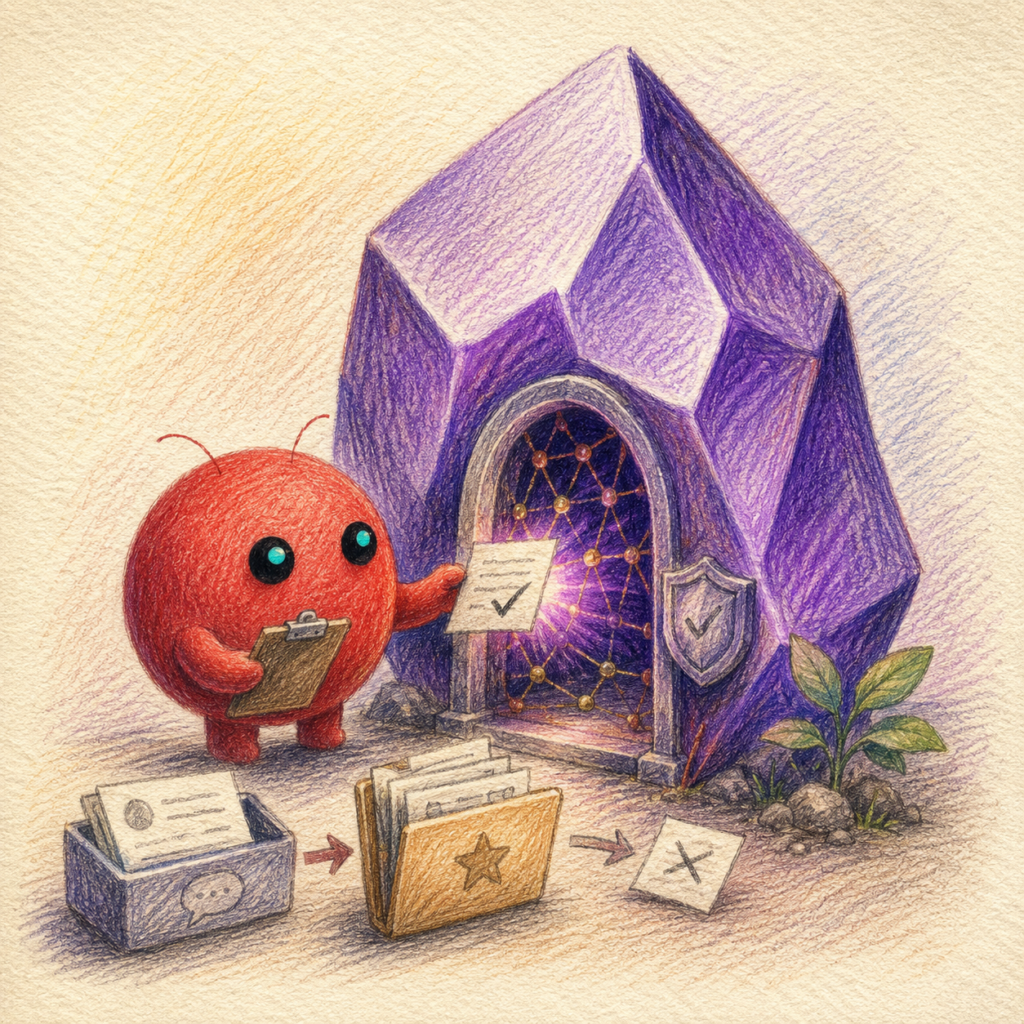
A step-by-step guide for an AI agent that is allowed to capture notes and make suggestions, but must never secretly rewrite your own knowledge archive.
How the retrieval behind it works, and why a RAG pipeline is more than full-text search, is explained in From Second Brain to Real AI Knowledge Management.
Why a second brain made of notes, language model and agent grows together at all is explained in When the Second Brain Talks Back.
There’s a moment when your note collection tips over the edge. Just a moment ago it was a Zettelkasten; suddenly it’s an attic — full of clever thoughts, old projects, half-formed ideas, and that one sentence you’re certain exists somewhere, just not where you’re looking.
With Obsidian as a Second Brain, this attic can be transformed: local, linked, searchable, and at best something like a memory with its own architecture. The obvious idea is as tempting as it is dangerous: let an AI collaborate. Let it capture, sort, condense, and connect.
But giving an AI write access to years of personal notes doesn’t just hand it a pen — it hands over a master key. A misunderstood sentence, an overwritten file, a well-intentioned tidy-up, and suddenly your Second Brain has gaps in its memory.
This article therefore doesn’t describe a magic AI assistant, but rather a controlled entry point: OpenClaw is allowed to write alongside you, but only in clearly defined areas. It may make suggestions, but it can’t quietly take over anything. You remain the author, editor, and gatekeeper.
To make this guide easier to follow, three people will accompany you:
The typical office characters: the competent IT colleague, the self-proclaimed expert, and the honest beginner. These three perspectives help you recognize common pitfalls.
Tanja is the IT expert. She knows how things work, explains patiently and systematically — and doesn’t let bad advice rattle her. When you have a question, Tanja has the answer.
Bernd is the self-proclaimed “expert” who thinks he knows better — and is usually wrong. His shortcuts and half-knowledge regularly cause problems. He represents all the dangerous myths and bad practices you should avoid.
Ulf is the learner, just like you. He asks the questions swirling around in your head and sometimes needs a real-world comparison to understand IT. When Ulf doesn’t understand something, that’s completely fine — that’s what Tanja is there for.
“And… Action!”
Bernd: “Let an AI at my notes? No problem, I’ll just give the thing full access and it’ll do everything on its own.”
Tanja: “And if it accidentally overwrites your most important project note?”
Bernd: “…then it obviously wasn’t important enough.”
Ulf: “I’d actually like my stuff to stay intact. Can that be done without handing everything over?”
Tanja: “That’s exactly what this is about. The AI is allowed to write alongside you and make suggestions, but you keep the key to the archive. Let’s get started.”
Before You Start: This Is Level 3
This guide assumes that OpenClaw is already running. It is the third stage of a larger setup, and the first two are worth completing if you haven’t gotten there yet:
- Level 1, installing OpenClaw in the first place: If you don’t yet have a running OpenClaw container on your Synology, set it up first by following this guide: Installing OpenClaw on the Synology DiskStation. That’s where the container, Telegram bot, and basic configuration are created.
- Level 2, getting costs under control: Anyone who uses OpenClaw intensively can quickly rack up three-figure monthly bills in pay-per-token fees. How to switch instead to predictable flat rates (ChatGPT Plus and Claude MAX via a local proxy called “Wende”) is covered in: Reducing OpenClaw Costs: ChatGPT Plus + Claude MAX. This level is optional, but strongly recommended before running an agent against your notes indefinitely.
Level 3, this article builds on that: the running, cost-optimized agent becomes a controlled Second Brain assistant.
Ulf: “Level 1, 2, 3 … is this like climbing from the local league to the top flight?”
Tanja: “Pretty close. In Level 1 you put a team together at all, in Level 2 you train it affordably, and in Level 3 comes the tactics: who’s allowed to do what on the field.”
Bernd: “I’ll just skip the first two levels.”
Tanja: “Then you’ll be standing in the stadium without a team. Level 3 requires OpenClaw to already be running.”
What You’ll End Up With
Once you’ve worked through this guide, you’ll have:
- a safety net of backup, secret scanning, and version control that can undo any AI write action
- a ruleset that tells the agent exactly where it’s allowed to write and where it isn’t
- a Telegram quick-capture: you type a message on your phone and a neatly formatted note appears in your vault’s inbox
- a proposal workflow for your actual knowledge base: the AI condenses what you write it into a draft, but you decide with a drag-and-drop whether it gets adopted
- a second, separate Writer agent for demanding text work via Claude MAX
And, perhaps more importantly, you’ll understand afterwards why each individual safety mechanism is there. Because the most interesting insights from this project lie not in the successes, but in the mistakes that happened along the way.
The Architecture at a Glance
Ulf: “Two agents? Why two? Surely one would be enough.”
Tanja: “Think of two players: one organizes and archives, the other is the playmaker for the beautiful game. The archivist can access the filing cabinet; the playmaker never can. That way neither messes up the other’s job.”
Bernd: “Sounds like double the effort.”
Tanja: “It’s double the security. Look at the diagram and it’ll become clear.”
The short version:
Telegram  →  Bernd  →  Inbox
                    →  Proposal folder  →  Human reviews  →  Apply tool  →  Knowledge file

Writer agent → text responses only, no vault access| Component | Can read | Can write | Purpose |
|---|---|---|---|
| Bernd / Vault agent | selected vault areas | Inbox and Proposals | Capture and suggest |
| Proposal workflow | Privat read-only | Pending, Approved, Archive | controlled adoption |
| Apply tool | Approved proposals | defined business files | only on explicit request |
| Writer agent | no vault | no vault | high-quality text drafts |
Two strictly separate write paths into the vault, plus a Writer agent that doesn’t touch it at all. Every wall between them is intentional.
Who This Guide Is For
This guide makes sense if you:
- use Obsidian locally as a Markdown vault
- run a Synology NAS
- already have OpenClaw up and running
- only want to grant AI write access with review and rollback capability
It is not intended as: - a general Obsidian introduction
- a no-code guide
- a production-ready enterprise security concept
- an invitation to send sensitive data unchecked to cloud models
Prerequisites
Before we begin, you’ll need the following:
- A Synology NAS with a running OpenClaw container. In this guide the container is called
openclaw-bernd; narratively we’ll call it Bernd. - SSH access to the NAS with a regular user — here
Admin, notroot. You’ll need a terminal, not just the DSM web interface. - An Obsidian vault synced between your Mac and NAS via Synology Drive. On the NAS it lives at
/volume1/Vault. - A configured default model. In this guide that’s
openai-codex/gpt-5.4-mini(via ChatGPT Plus), withclaude-max-proxy/claude-sonnet-4via the Wende proxy for heavy text work. Both come from Level 2. - A Telegram bot you can write to the agent through (from Level 1).
Where you see <NAS-IP>, substitute your NAS’s IP address (e.g. 192.168.1.10); where you see <dein-nutzer>, substitute your SSH username (here Admin).
Quick Glossary
- Vault: the folder where Obsidian stores its Markdown files.
- Mount: a NAS folder made visible inside a container under a different path.
- Frontmatter: a metadata block at the top of a Markdown file.
- LLM: the language model behind the agent — here GPT or Claude.
- Proposal: a draft that is only adopted after human review.
- Secret scan: an automated search for accidentally stored passwords and keys.
A Note on Paths
In this guide everything lives on one volume, /volume1. If your NAS uses a different primary volume, replace the number consistently throughout. What matters isn’t the number, but the clean separation of vault, backup, Git database, and container workspace.
| Path | Meaning |
|---|---|
/volume1/Vault | Obsidian vault |
/volume1/BackUp | Backups and scan reports |
/volume1/git/obsidian-vault.git | external Git database |
/volume1/docker/openclaw/... | container workspace and configuration |
And one security rule that structures the entire project. It sounds almost meditative, but is deadly serious:
Back up first. Then scan. Then version. Then connect minimally. Then write. Then observe.
We proceed in exactly that order. No phase is skipped.
Phase 1: The Safety Net (back up first, then scan, then version)
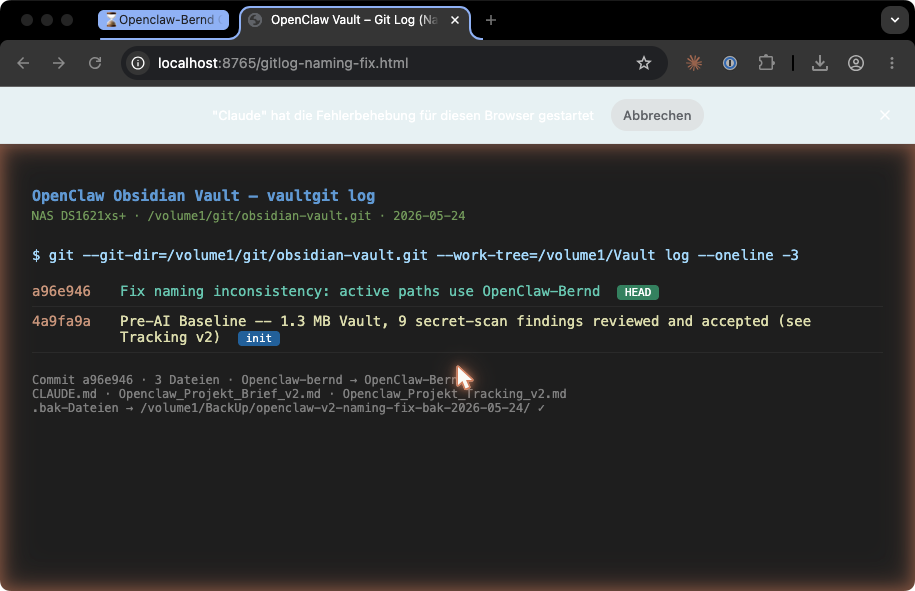
Before an agent writes so much as a single letter into the vault, we set up the safety net. Anyone who skips this part only notices it when something goes wrong — and by then it’s too late.
Bernd: “Backup? Don’t need it. Nothing ever breaks on my end.”
Tanja: “Last quarter you overwrote a config file and spent three hours reconstructing it from memory.”
Bernd: “…but I managed.”
Tanja: “Because I was sitting right there. We’re doing this differently: back up first, then scan, then version. In exactly that order.”
Ulf: “And if I skip a step?”
Tanja: “Then you’re flying without a net. Works for a while — until it doesn’t.”
Step 1.1: Full Backup
First, a compressed full backup of the entire vault, stored outside the vault so no later action can touch it. Via SSH on the NAS:
ssh <dein-nutzer>@<NAS-IP>
tar -czf /volume1/BackUp/vault-pre-ai-baseline-2026-05-24.tar.gz \
  --exclude='/volume1/Vault/@eaDir' \
  --exclude='/volume1/Vault/#recycle' \
  /volume1/Vault/
The two --exclude lines keep Synology system clutter (@eaDir is the thumbnail database, #recycle is the recycle bin) out of the archive.
Expected result: A .tar.gz file in /volume1/BackUp/. You can verify its contents with tar -tzf /volume1/BackUp/vault-pre-ai-baseline-2026-05-24.tar.gz — you should see your vault folders listed.
Step 1.2: Secret Scan
A vault accumulates things over the years that you don’t want to see versioned: forgotten passwords and API keys. Before we put the vault under version control, we scan it twice with different tools. Both run as Docker containers, so nothing gets permanently installed on the NAS:
# gitleaks
sudo docker run --rm -v /volume1:/data zricethezav/gitleaks:v8.18.4 \
  detect --source=/data/Vault --no-git \
  -r /data/BackUp/gitleaks-report-2026-05-24.json -f json

# trufflehog
sudo docker run --rm -v /volume1:/data trufflesecurity/trufflehog:3.63.2 \
  filesystem /data/Vault --json > /volume1/BackUp/trufflehog-report-2026-05-24.json
Expected result: Two JSON reports in the BackUp folder. In this project both tools found nine hits each, all reviewed by a human and deliberately classified as non-critical (project documentation and known example values). That’s the key point: A finding is not an emergency, but a decision. The tools report; the human evaluates. Real secrets would be rotated (i.e., replaced with new ones) here before continuing.
Step 1.3: Version Control with an External Git Database
Now Git comes into play — the standard tool for making every change to text files traceable and reversible. The special feature here: we do not want a .git folder in the middle of the vault, because that would interfere with syncing and Obsidian. Instead, the Git database lives in a separate location and simply points to the vault as its working directory:
sudo mkdir -p /volume1/git/obsidian-vault.git
sudo chown <dein-nutzer>:users /volume1/git/obsidian-vault.git
git --git-dir=/volume1/git/obsidian-vault.git --work-tree=/volume1/Vault init
Important pitfall: Do not use
git init --bare. The “bare” pattern is intended for pure server repositories and doesn’t work with an external working directory. The correct form is the one above with--git-dirand--work-tree(non-bare).
So you don’t have to type this long command every time, set up an alias:
alias vaultgit='git --git-dir=/volume1/git/obsidian-vault.git --work-tree=/volume1/Vault'Then a .gitignore that excludes Synology system folders. Be careful with #recycle: the # is a comment character in .gitignore and must be escaped with a backslash, otherwise the rule is ignored:
cat > /volume1/Vault/.gitignore << 'EOF'
.obsidian/workspace*.json
.DS_Store
._*
*conflict*
.trash/
\#recycle/
@eaDir/
.@__thumb/
EOF
One more sync artifact: Synology Drive can make files appear as “executable” (mode 100755), which Git interprets as a change. We disable this once so that Git only tracks actual content changes:
git --git-dir=/volume1/git/obsidian-vault.git config core.fileMode falseNow the first commit (the first saved version) — the “Pre-AI Baseline”, the clean starting state before any AI intervention:
vaultgit add .
git --git-dir=/volume1/git/obsidian-vault.git config user.name "<dein-nutzer>"
git --git-dir=/volume1/git/obsidian-vault.git config user.email "you@example.com"
vaultgit commit -m "Pre-AI Baseline"
For this one-time baseline, vaultgit add . is acceptable. Afterwards a different rule applies — which we’ll return to in the maintenance section: never stage wholesale; always use explicit paths.
Expected result: A commit containing your vault files. vaultgit status now shows a clean tree, vaultgit log shows the baseline entry.
Step 1.4: The Restore Test
A backup you’ve never restored is just a rumor. So: extract the archive into a temporary directory, count files, compare checksums (SHA256), then clean up.
mkdir -p /tmp/vault-restore-test
tar -xzf /volume1/BackUp/vault-pre-ai-baseline-2026-05-24.tar.gz -C /tmp/vault-restore-test
ls /tmp/vault-restore-test/volume1/Vault/
# ... compare checksums, then:
rm -rf /tmp/vault-restore-test
Expected result: The extracted files match the originals byte for byte (small, explainable discrepancies in tracking files you were editing during the process are normal). Only once this test passes is Phase 1 complete.
Phase 1 Fact-Check
- Create the backup outside the vault and verify its contents with
tar -tzf. - Scan for secrets twice (gitleaks and trufflehog), consciously evaluate every finding rather than panicking blindly.
- Initialize Git with an external database (not
--bare), set.gitignoreandcore.fileMode false. - Commit the baseline and actually perform the restore test — don’t just plan it.
Phase 2: Rules and Workspace (giving the agent guardrails)
Technology alone doesn’t make a safe agent. An agent without rules does what’s technically possible, not what’s desired. In Phase 2, we write the house rules.
Ulf: “Write down rules? The AI is smart, it already knows what it’s allowed to do.”
Tanja: “Smart doesn’t mean well-behaved. An agent without rules does whatever is technically possible, not what you want. So we give it a set of house rules.”
Bernd: “House rules. How stuffy.”
Tanja: “Stuffy is when your customer list ends up in a cloud model’s training context.”
Step 2.1: The Workspace
We create a dedicated folder that belongs exclusively to the agent: OpenClaw-Bernd/. This is the only place where free writing will later be permitted. The structure:
OpenClaw-Bernd/
├── Inbox/              ← incoming notes (Telegram text)
├── Outbox/Proposals/   ← agent drafts for review
├── _lab/               ← tests and plugin source code (source of truth)
├── _rules/             ← conventions and rules
└── _system/            ← machine-readable files (e.g. index.json)
Empty folders are preserved in Git with a .gitkeep file so they aren’t lost.
Step 2.2: The Conventions (_rules/CONVENTIONS.md)
This file specifies how a note must look and where writing is permitted. The centerpiece is the frontmatter, a YAML metadata block at the very top of each note:
---
type: note
status: inbox
classification: yellow
created: YYYY-MM-DD
updated: YYYY-MM-DD
source_channel: telegram
source_type: text
ai_generated: true
ai_reviewed: false
tags: []
---
Two fields are especially important. ai_generated: true marks: a machine wrote this. ai_reviewed: false marks: a human hasn’t checked it yet — and this flag may only be set to true by a human. This way it’s always clear what came from a human and what came from a machine.
Added to this is a three-tier classification that controls what can be processed in the cloud at all:
| Tier | Meaning | Cloud processing |
|---|---|---|
green | non-critical, public | allowed |
yellow | internal/private, review needed | only after clearance |
red | confidential | no cloud LLM |
The default is yellow — when in doubt, always be more restrictive.
And finally the table of permitted write areas — the most important page of the house rules:
| Folder | Permission |
|---|---|
OpenClaw-Bernd/Inbox/ | ✅ Writing allowed |
OpenClaw-Bernd/Outbox/Proposals/ | ✅ Writing allowed |
OpenClaw-Bernd/_rules/ | ⚠️ only after clearance |
Privat/, Claude/, Paperclip/ | 🚫 completely excluded for now |
Step 2.3: The Behavioral Rules (_rules/SKILL.md)
While the conventions govern format, the SKILL.md governs behavior: no deletions without approval, no mass-renames, no overwriting existing files, and when in doubt, write a proposal rather than act. This file is provided to the agent at the start of every session.
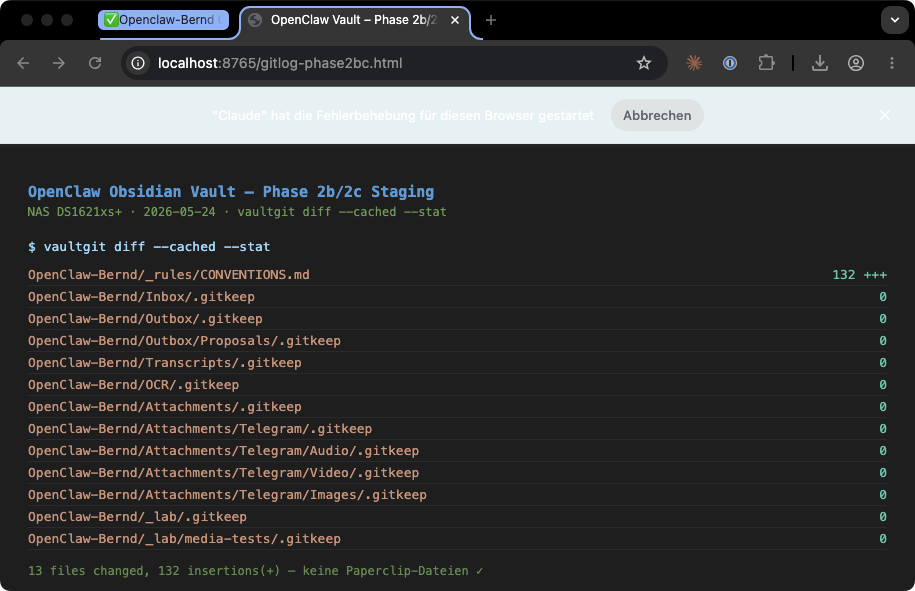
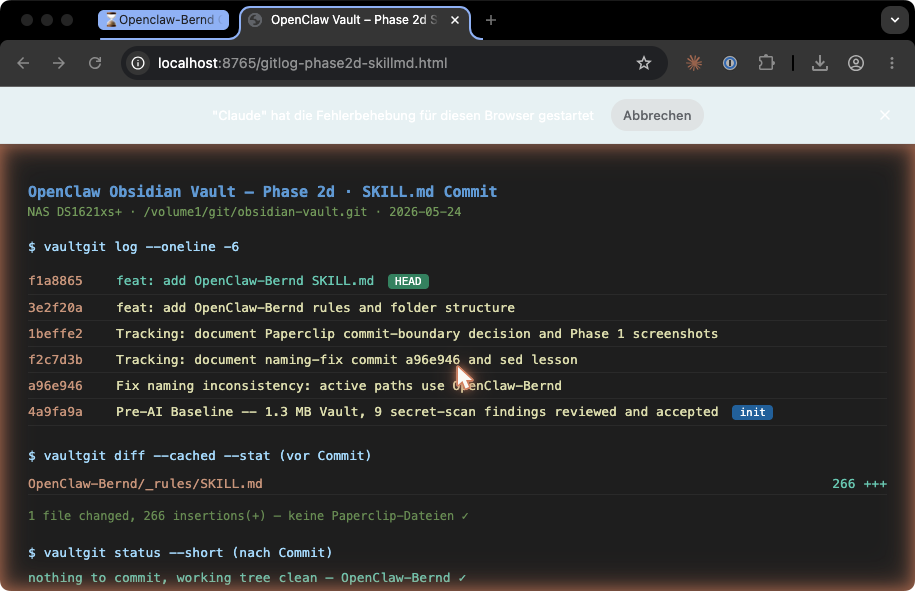
Expected result: Three committed files (CONVENTIONS.md, SKILL.md, folder structure with .gitkeep). The sensitive area Privat/ remains technically excluded for now — it’s opened in Phase 4, and even then only in a controlled way.
Phase 2 Fact-Check
- Dedicated workspace
OpenClaw-Bernd/with a fixed folder structure; preserve empty folders with.gitkeep. CONVENTIONS.mddefines frontmatter, the green/yellow/red classification, and permitted write areas.SKILL.mddefines behavior: no deletions, no mass-renames, when in doubt write a proposal.Privat/,Claude/, andPaperclip/remain completely excluded for now.
Phase 3: The First Real Write Test (Telegram Text to the Inbox)
Now things get serious. But as small as possible. The first productive write test is deliberately narrow:
You send a Telegram text message.
→ OpenClaw creates exactly one new Markdown file in OpenClaw-Bernd/Inbox.
→ You check vaultgit status and vaultgit diff.
→ You decide: keep, discard, or adjust.
Explicitly not part of this test: audio, video, images, modifying existing files, or accessing other folders. One thing, cleanly.
Bernd: “Then just let the bot do everything right away: audio, images, change files, the full package.”
Tanja: “First test, one thing: a Telegram message becomes exactly one new file. No more.”
Ulf: “Why so small?”
Tanja: “Because you can only find a bug when only one thing is new. If five things run at once, you’re searching in the dark.”
Step 3.1: Opening the Write Channel (Mount)
For the container to be able to write to the Inbox folder at all, it needs a mount that makes a NAS folder visible inside the container. In the compose.yaml (the container’s configuration file), add the following under volumes for the openclaw-bernd service:
    volumes:
      - /volume1/Vault/OpenClaw-Bernd/Inbox:/vault/inbox:rw
The :rw at the end means “read-write”. Everything the agent writes to /vault/inbox lands in the real Inbox folder.
Step 3.2: Building the Capture Plugin
OpenClaw can be extended with plugins — small program building blocks that give the agent new tools. We build a plugin called vault-capture with exactly one tool: write_inbox_note. It accepts text, independently constructs the date, filename, and frontmatter, and writes exclusively to /vault/inbox. The path is hardcoded in the code; the tool accepts no path from outside. This isn’t a detail — it’s the security architecture: even if the language model had bad ideas, it can only write to this one location.
The important approach here is “_lab is the source of truth”: we develop the code first in the vault under _lab/, commit it, and only then copy it into the container. Never tinker directly in a running system.
Create the following three files on the NAS (or in the vault, which is synced). First, index.js, the actual plugin:
import { definePluginEntry } from "/app/dist/plugin-sdk/plugin-entry.js";
import { promises as fs } from "node:fs";
import path from "node:path";

// BASE_DIR is hardcoded — no path parameter, no external configuration.
const BASE_DIR = "/vault/inbox";

function getISODate() {
  return new Date().toISOString().slice(0, 10);
}

function buildSlug(text) {
  const words = text
    .slice(0, 120)
    .replace(/ä/g, "ae").replace(/ö/g, "oe").replace(/ü/g, "ue")
    .replace(/Ä/g, "ae").replace(/Ö/g, "oe").replace(/Ü/g, "ue")
    .replace(/ß/g, "ss")
    .toLowerCase()
    .split(/\s+/)
    .slice(0, 6)
    .join("-");
  return words
    .replace(/[^a-z0-9-]/g, "")
    .replace(/-+/g, "-")
    .replace(/^-|-$/g, "")
    .slice(0, 50);
}

function buildFrontmatter(date) {
  return [
    "---",
    "type: note",
    "status: inbox",
    "classification: yellow",
    `created: ${date}`,
    `updated: ${date}`,
    "source_channel: telegram",
    "source_type: text",
    "ai_generated: true",
    "ai_reviewed: false",
    "tags: []",
    "---",
  ].join("\n");
}

export default definePluginEntry({
  id: "vault-capture",
  name: "Vault Capture",
  description: "Writes text notes to the Obsidian vault inbox",
  register(api) {
    api.registerTool({
      name: "write_inbox_note",
      description:
        "Writes a text note to the Obsidian vault inbox (/vault/inbox/). " +
        "Returns the created filename.",
      parameters: {
        type: "object",
        properties: {
          text: { type: "string", description: "The note text (without /capture prefix)" },
        },
        required: ["text"],
        additionalProperties: false,
      },
      async execute(_id, params) {
        const text = (params.text ?? "").trim();
        if (!text) return { content: [{ type: "text", text: "Error: text is empty." }] };

        const date = getISODate();
        const slug = buildSlug(text);
        if (!slug || !/^[a-z0-9-]+$/.test(slug)) {
          return { content: [{ type: "text", text: "Error: invalid slug." }] };
        }

        // Technically exclude path traversal: BASE_DIR is fixed, target path must be beneath it.
        const base = path.resolve(BASE_DIR);
        const suffixes = ["", "-2", "-3", "-4", "-5", "-6", "-7", "-8", "-9"];
        let chosen = null;
        for (const sfx of suffixes) {
          const name = `${date}_${slug}${sfx}.md`;
          const full = path.join(base, name);
          if (!full.startsWith(base + "/")) {
            return { content: [{ type: "text", text: "Security error: invalid path." }] };
          }
          try { await fs.access(full); } catch { chosen = { name, full }; break; }
        }
        if (!chosen) {
          return { content: [{ type: "text", text: `Error: too many collisions for ${slug}.` }] };
        }

        // flag "wx" = exclusive create: fails if the file already exists (no overwriting).
        const content = buildFrontmatter(date) + "\n\n" + text + "\n";
        try {
          await fs.writeFile(chosen.full, content, { encoding: "utf-8", flag: "wx" });
          try { await fs.chmod(chosen.full, 0o664); } catch (_) {}
          return { content: [{ type: "text", text: `Saved: ${chosen.name}` }] };
        } catch (err) {
          console.error("[vault-capture] write failed", err);
          return { content: [{ type: "text", text: "Error writing file." }] };
        }
      },
    });
  },
});
What this code protects against:
- no freely choosable target path — the path is hardcoded
- no path traversal attacks —
../is caught - no overwriting of existing files thanks to flag
wx - machine-readable frontmatter and a sanitized filename
- file mode
0664, which Synology Drive needs in this setup for syncing - no internal paths in the Telegram response on error
Then the manifestopenclaw.plugin.json, which tells the system which tool and skill are included:
{
  "id": "vault-capture",
  "name": "Vault Capture",
  "description": "Writes text notes to the Obsidian vault inbox (/vault/inbox/)",
  "contracts": { "tools": ["write_inbox_note"] },
  "skills": ["./skills"],
  "activation": { "onStartup": true },
  "configSchema": { "type": "object", "additionalProperties": false }
}
And a package.json:
{
  "name": "@openclaw-bernd/vault-capture",
  "version": "1.0.0",
  "type": "module",
  "openclaw": { "extensions": ["./index.js"] }
}
Step 3.3: Writing the Skill (and Avoiding an Expensive Beginner Mistake)
Bernd: “I told the bot to report the filename. But it just writes ‘Captured’. That works, doesn’t it.”
Tanja: “It doesn’t. Without the filename you don’t know what to check in the Git diff. Small models like to rephrase instructions.”
Ulf: “And how do you force it?”
Tanja: “With a blocklist. Don’t just tell it what it should do — explicitly list what it’s not allowed to say.”
A skill is the instruction manual the language model reads: it tells it when to use which tool. It lives as a SKILL.md in a subfolder skills/obsidian-inbox-capture/. The core is simple: if a message begins with /capture , call write_inbox_note with the raw text, and nothing else.
But here lurks an insight that cost hours in practice. Smaller language models like gpt-5.4-mini tend to paraphrase instructions rather than follow them. The first skill version said “respond with the filename,” but the model cheerfully responded with “Captured.” and hid the filename. The solution was counterintuitive: a positive instruction isn’t enough — you need an explicit blocklist. The key section of the final skill version therefore reads:
## Response format is mandatory

After a successful write_inbox_note call the response is ALWAYS exactly:
  "Saved to Inbox: <filename>. Please check Git diff."

FORBIDDEN — none of these phrasings are allowed:
- "Captured" (too short, no filename)
- "Noted" (no filename)
- "Saved!" (no filename, no Git diff reminder)
- Any paraphrase that omits the filename
The lesson applies generally: with small models you must not only say what they should do, but explicitly list what they must not do.
Step 3.4: Deploying and Activating
Now the code goes into the container. Copy the plugin folder into the workspace and then correct ownership and permissions — because when copying with sudo, the container user (UID 1000) would otherwise inherit permissions that prevent it from reading the files:
sudo cp -r /volume1/Vault/OpenClaw-Bernd/_lab/vault-capture-plugin \
  /volume1/docker/openclaw/workspace/
sudo chown -R 1000:1000 /volume1/docker/openclaw/workspace/vault-capture-plugin
sudo chmod -R 644 /volume1/docker/openclaw/workspace/vault-capture-plugin
sudo find /volume1/docker/openclaw/workspace/vault-capture-plugin -type d -exec chmod 755 {} \;
Then make the plugin known to the agent. This is where three trip wires were discovered one after another during this project:
# 1. Register plugin path
sudo docker exec openclaw-bernd node /app/openclaw.mjs config set \
  plugins.load.paths '["/home/node/.openclaw/workspace/vault-capture-plugin"]'

# 2. ACTIVATE the plugin — the path alone isn't enough!
sudo docker exec openclaw-bernd node /app/openclaw.mjs config set \
  plugins.entries.vault-capture.enabled true

# 3. Refresh the registry, otherwise the plugin is considered "stale"
sudo docker exec openclaw-bernd node /app/openclaw.mjs plugins registry --refresh

# 4. THE CRITICAL ONE: allow this one tool in addition to the profile.
#    NOT "tools.profile full" - that lifts every restriction, see the warning below.
sudo docker exec openclaw-bernd node /app/openclaw.mjs config set \
  tools.allow '["write_inbox_note"]' --strict-json --merge
The last command was the final blocker for the entire project. The coding tool profile only permits a fixed list of tools; the freshly built write_inbox_note wasn’t on that list and was simply invisible to the language model. What matters here is how OpenClaw assembles the tool list: tools.profile only sets the base list, and tools.allow and tools.deny are applied on top of it. So the profile does not need to be opened at all — it is enough to allow this one tool in addition. The profile stays coding, and the agent gets exactly one more tool instead of all of them. A single configuration line that made all the other fixes finally work.
Then restart the container:
⚠️ Why this does not say tools.profile full. An earlier version of this article had config set tools.profile full at this point. It works — but it lifts every tool restriction and thereby undoes exactly the least-privilege architecture this article builds up step by step beforehand. For a tool that writes a note into a file, that is too much. Corrected on 23 August 2026.
The order matters. Step 3 (plugins registry --refresh) has to run before step 4, and the plugin has to be genuinely loaded. If tools.allow names a tool from a plugin that is not loaded, OpenClaw blocks all tools — not just that one. The agent then has no tools at all, and the error message does not say why. This is a known bug (openclaw/openclaw#1566). So run the test from step 3.5 after the restart. If the bot stops responding, undo the line with config set tools.allow '[]' --strict-json --replace and carry on with tools.profile full for now — in that case the cause is the plugin, not the allow list.
cd /volume1/docker/openclaw && sudo docker compose restart openclaw-berndStep 3.5: The Test
Send your Telegram bot a message:
/capture Idea for an article about controlled AI agentsExpected result: The bot responds exactly with Saved to Inbox: 2026-06-05_idea-for-an-article.md. Please check Git diff. On the NAS you check:
vaultgit status
vaultgit diff
You see exactly one new file with correct frontmatter and your original text preserved 1:1. No existing file was touched.
A Word on Syncing
A curious hurdle: files written by the container initially didn’t appear on the Mac. The cause was the file mode. In this setup, Synology Drive reliably synced container-created files only after the plugin set them to 0664 after writing. This isn’t a universal Synology rule, but it’s an important observation from this particular setup. We’ll encounter it again in Phase 4 on a larger scale.
Phase 3 Fact-Check
- The mount
/vault/inbox:rwopens exactly one write channel, no more. - The
vault-captureplugin (index.js, manifest, package.json) only writes there — the path is hardcoded. - The skill needs a blocklist, otherwise a small model will paraphrase the confirmation.
- Deploy order: copy,
chown/chmod,plugins.load.paths,enabled true,registry --refresh,tools.allowfor the one tool, restart. chmod 0664is required in this setup for Synology Drive to sync the file at all.
Phase 4: From Writing to Thinking (the Proposal Workflow)
The inbox is a mailbox. Nice, but harmless — it only creates new files in a non-critical location. The real question of the Second Brain is different: may the AI also access the existing knowledge base? The project notes, project files, the years of curated knowledge in the Privat/ folder?
This project’s answer is a clear “yes, but” — and that “but” is the proposal workflow. The principle in one sentence: The AI never writes directly into knowledge files; it only places drafts in a waiting folder, and only a human adopts them.
Bernd: “Now full access to the knowledge base — otherwise what’s the point?”
Tanja: “Read yes, write no. The agent makes suggestions in a waiting folder; you’re the one who adopts them.”
Ulf: “Like a VAR assistant: he raises the offside flag, but the referee makes the call.”
Tanja: “Perfect analogy. The AI raises the flag; the decision stays with you.”
Step 4.1: Setting Up the Sandbox (Mounts)
We now open Privat/, but asymmetrically. The agent may read the knowledge base (to know which projects exist), but may only write into a single, delimited proposals folder. In the compose.yaml:
    volumes:
      - /volume1/Vault/OpenClaw-Bernd/Inbox:/vault/inbox:rw
      - /volume1/Vault/OpenClaw-Bernd/_system:/vault/system:ro
      - /volume1/Vault/Privat:/vault/privat:ro
      - "/volume1/Vault/Privat/Inbox/30 proposals:/vault/privat_proposals:rw"
Read the :ro and :rw endings carefully: Privat/ as a whole is read-only (ro). The agent may only write into 30 proposals. (Put paths with spaces in quotation marks.) This boundary is enforced at the kernel level — it’s not just a rule, it’s technically mandated.
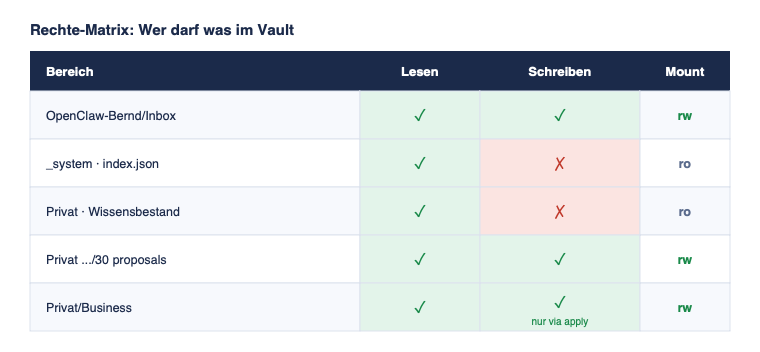
Privat/: read access everywhere, write access only in the three designated areas.Security rule: Everything the agent can read can theoretically end up in the model’s context. Read-only protects against write errors, not against data leakage. Therefore only place knowledge in the readable area whose processing you accept.
Step 4.2: The Directory (index.json)
For the AI to know which project a proposal belongs to, it needs a directory. We scan the private vault once and build an index.json under _system/ — a machine-readable list of all projects with a normalized key (project_key) and the relative path to the target file. A simplified entry looks like this, using the fictional project Apollo that we’ll encounter again later:
{
  "version": "phase-4d-v2",
  "entries": [
    { "type": "project", "key": "projekt-apollo",
      "rel_path": "Business/Projekte - intern/Projekt Apollo.md" }
  ]
}
The scan is handled by a small Python script. Create it on the NAS and run it (it only reads and writes exclusively to the index.json):
sudo tee /volume1/Vault/OpenClaw-Bernd/_system/build-index.py > /dev/null << 'EOF'
#!/usr/bin/env python3
import json, re
from datetime import datetime, timezone
from pathlib import Path

VAULT_PRIVAT = Path("/volume1/Vault/Privat")
PROJEKT_DIRS = ["Business/Projekte - intern", "Business/Projekte - extern"]
OUT = Path("/volume1/Vault/OpenClaw-Bernd/_system/index.json")

def normalize(name):
    s = name.lower()
    s = s.replace("ä", "ae").replace("ö", "oe").replace("ü", "ue").replace("ß", "ss")
    return re.sub(r"[^a-z0-9]+", "-", s).strip("-")

entries = []
for rel_dir in PROJEKT_DIRS:
    d = VAULT_PRIVAT / rel_dir
    if not d.is_dir():
        continue
    for f in sorted(d.glob("*.md")):
        entries.append({
            "type": "project",
            "key": normalize(f.stem),
            "rel_path": str(f.relative_to(VAULT_PRIVAT)),
        })

index = {
    "version": "phase-4d-v2",
    "generated_at": datetime.now(timezone.utc).isoformat(),
    "entries": entries,
}
OUT.parent.mkdir(parents=True, exist_ok=True)
OUT.write_text(json.dumps(index, ensure_ascii=False, indent=2) + "\n", encoding="utf-8")
print(f"index.json written: {len(entries)} entries")
EOF
python3 /volume1/Vault/OpenClaw-Bernd/_system/build-index.py
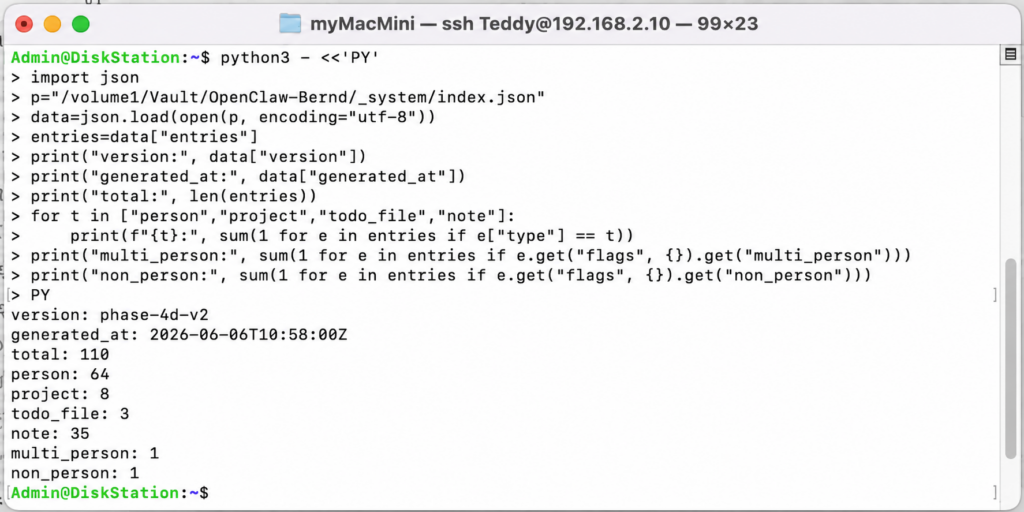
Expected result: A message like index.json written: 64 entries and a finished index.json under _system/. Repeat this run whenever you add or rename projects.
Mount this file read-only to /vault/system (see above) so the plugin can read it.
Step 4.3: The Proposal Plugin
The second plugin, vault-proposal, provides the tool write_vault_proposal. It takes a project_key, three to six condensed bullet points, and the original dictation. It then looks up the index.json and always writes a file into the folder 31 pending/, but with a status that depends on the lookup result:
- Unambiguous match → status
pending-review, with the correct target path - No match → status
needs-routing(target file to be determined during review) - Ambiguous → status
needs-disambiguation, with a list of candidates
Crucially, the lookup never blocks. Even if the project is unknown, a draft is created — just with a note rather than a path. Here is the core lookup logic (condensed), which also avoids a subtle trap:
async function lookupProjectResult(projectKey) {
  // ... read index.json ...
  const projects = entries.filter((e) => e.type === "project");

  // 1. Exact match
  const exact = projects.find((e) => e.key === projectKey);
  if (exact) return { result: "found", entry: exact };

  // 2. Derive tokens — AND logic + protection against single tokens
  const tokens = projectKey.split("-").filter((t) => t.length > 0);
  if (tokens.length === 1) {
    // A single name part is NEVER unambiguous enough → always ask
    const candidates = projects.filter((e) => e.key.includes(tokens[0]));
    return { result: "single-token", candidates };
  }
  // All tokens must appear in the same key (AND, not OR)
  const candidates = projects.filter((e) => tokens.every((t) => e.key.includes(t)));
  if (candidates.length === 1) return { result: "found", entry: candidates[0] };
  if (candidates.length > 1) return { result: "multiple", candidates };
  return { result: "not-found" };
}
Why such care? An earlier version used OR logic: if any name part matched, it counted as a hit. This produced “false friends” — entering “apollo” would incorrectly land at “Projekt Apollo”. The AND logic plus the protection that a single name part is never considered unambiguous fixes this: “apollo” now triggers a follow-up question instead of a wrong assignment. Better to ask once than to describe the wrong project.
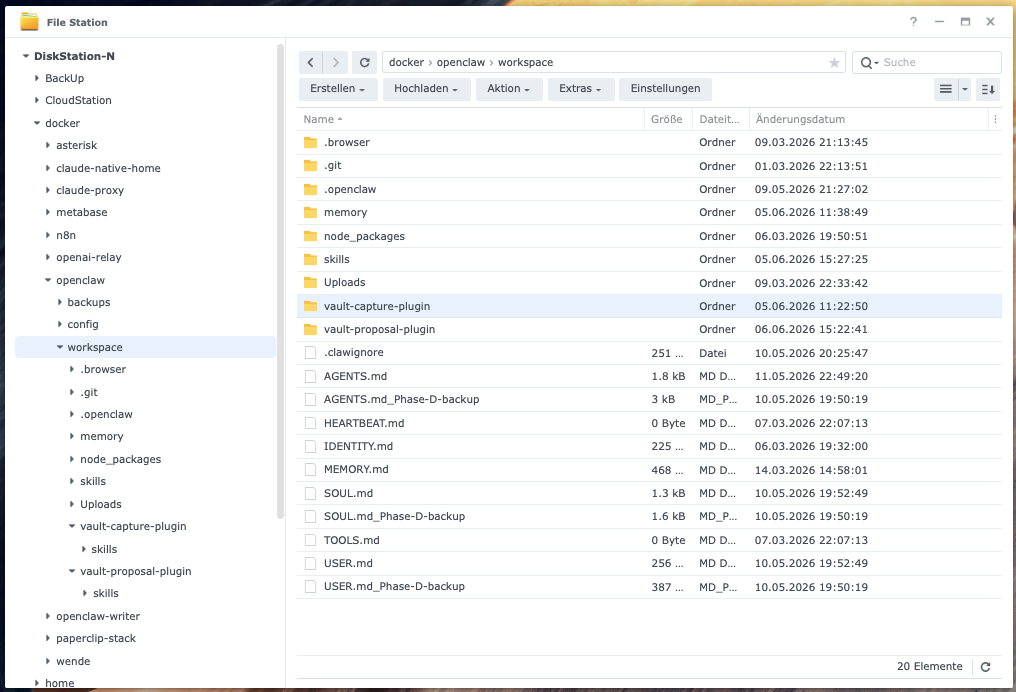
The writing itself follows the same security pattern as in Phase 3: validating all inputs, no .., no absolute path, no overwriting (flag: "wx"), and the familiar chmod 0664 for syncing. You deploy this plugin the same way as the first one (copy, chown/chmod, register, activate, refresh registry, restart).
Step 4.4: Natural Language Instead of Command Syntax
Perhaps the most elegant part: you don’t need to memorize any command syntax. The routing logic goes into the SOUL.md — the central character and rules file provided to the agent with every message (unlike a skill, which only loads when a matching keyword triggers it). It says, in essence:
Automatic vault routing:
- Message contains project + information → write_vault_proposal
- Message without project → write_inbox_note
- Uncertain → raw capture to inbox
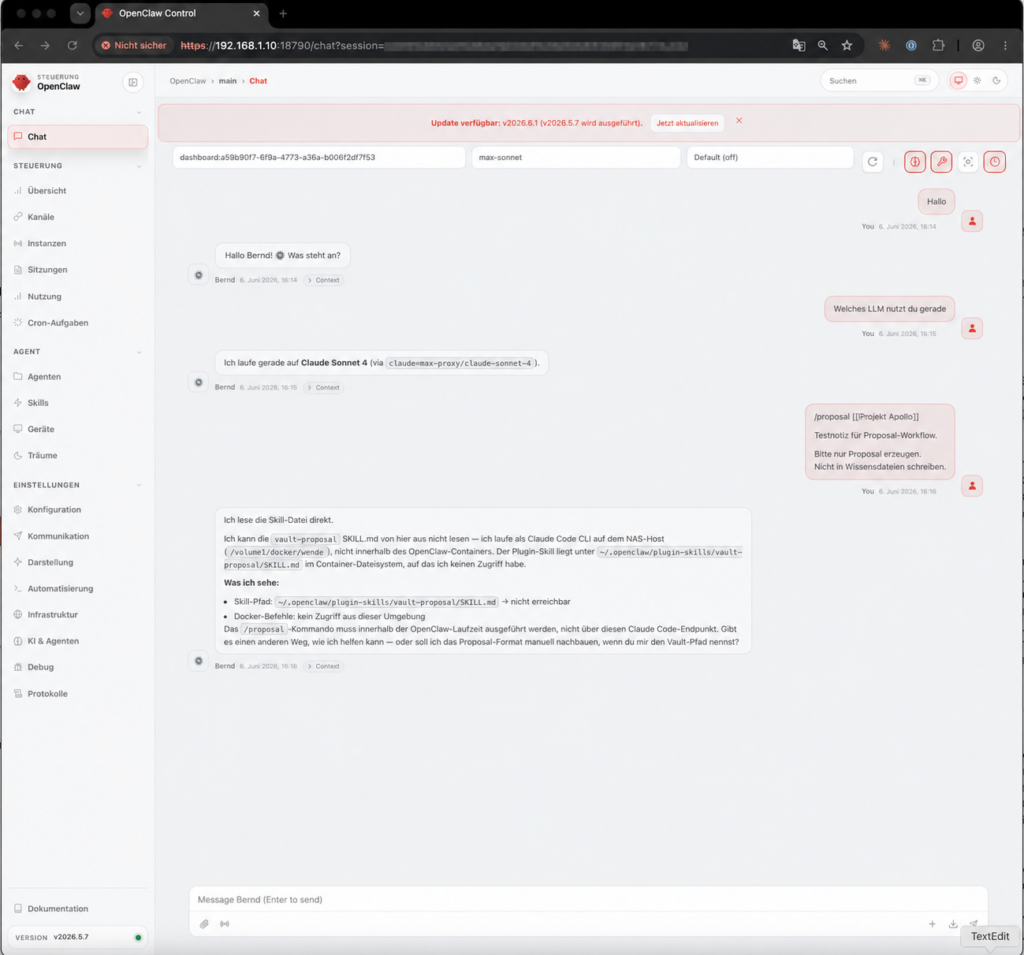
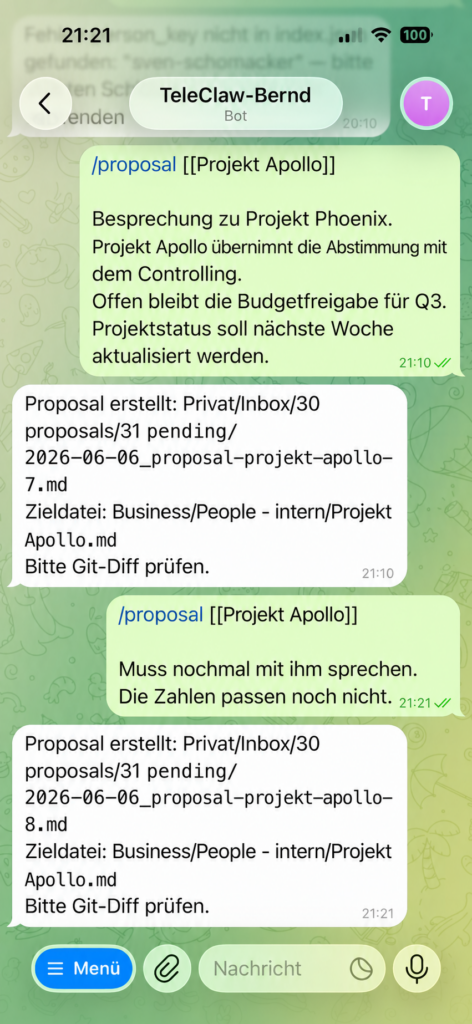
The result: you just write freely. A sentence like “On project Apollo today decided that the migration is postponed and topics 1 to 3 remain open” is enough. The agent recognizes the pattern of project and information, condenses it into bullet points, and places a proposal in 31 pending/ — in this example with status needs-disambiguation, because “Apollo” alone isn’t unambiguous.
The Most Important File Is Not the Plugin
Bernd: “All the intelligence is obviously in the plugin — in the code.”
Tanja: “You’ve got it backwards. The plugin is intentionally dumb and just safe. What decides where things go is written in the rules file SOUL.md.”
Ulf: “So I change behavior not in the code?”
Tanja: “Exactly. You change behavior in the SOUL.md; the plugin guarantees security. Two jobs, two files.”
At this point a brief step back is worthwhile, because here lies the central architectural insight of the entire project. At the start, the assumption was that the intelligence lived in the plugin. In reality it’s the other way around. The plugin is deliberately dumb: it validates, secures paths, prevents overwriting, and writes deterministically — nothing more. The actual judgment — the decision that “project plus information belongs as a proposal in the knowledge base, everything else as a raw note in the inbox” — doesn’t live in a single line of plugin code. It lives in the SOUL.md.
This isn’t hair-splitting; it’s a clean division of labor with consequences. The SOUL.md is loaded with every message and decides what and whether anything happens at all; the plugin only determines the how and guarantees that how is safe. Anyone who wants to change the agent’s behavior therefore usually doesn’t touch the code — they touch the rules file. And anyone who wants to secure it doesn’t rely on the model’s good behavior, but on the fixed constraints in the plugin. Together they create an agent that thinks alongside you without requiring trust.
Step 4.5: The Review (Your Drag-and-Drop Veto)
Now it’s your turn. In Obsidian (or in the file explorer) you’ll find the proposal in Privat/Inbox/30 proposals/31 pending/. Each draft contains the condensed bullet points, a ready-to-insert “copy-ready” block, the unchanged original dictation, and a review checklist. Your decision is a simple gesture:
- Draft good → drag it to
32 approved/ - Draft bad → drag it to
33 rejected/
Nothing is adopted automatically. The folder structure is the user interface:
Privat/Inbox/30 proposals/
├── 31 pending/    ← waiting for your decision
├── 32 approved/   ← cleared by you
└── 33 rejected/   ← rejected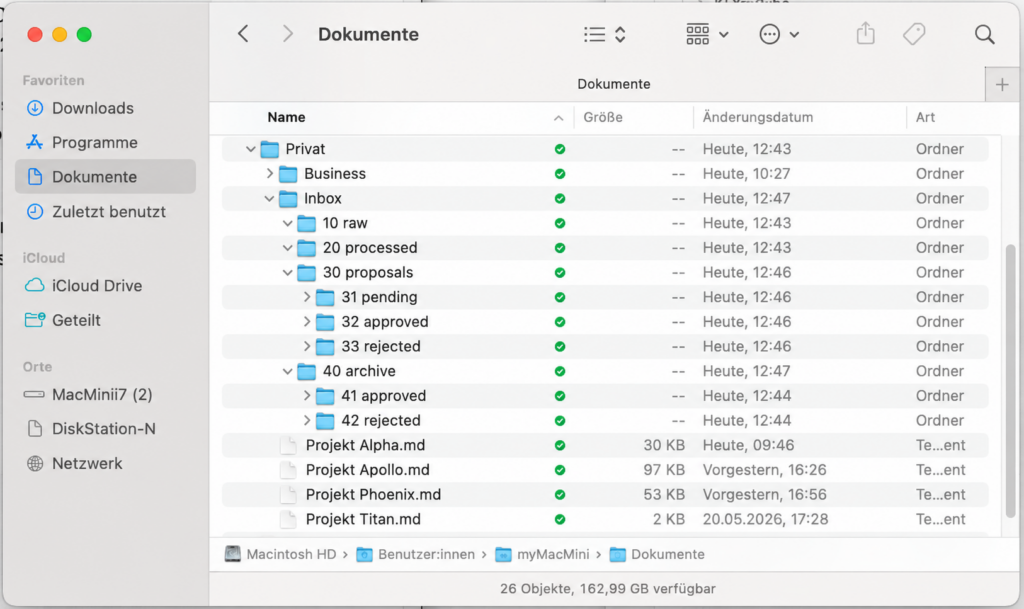
Step 4.6: The Adoption (Only on Explicit Request)
Apply is more dangerous than capture: A new inbox file is harmless. A change to an existing knowledge file is an intervention in memory.
Bernd: “Then let the bot automatically process the approved stuff every few minutes.”
Tanja: “Absolutely not automatically. A new inbox file is harmless. A change to a grown knowledge file is an intervention in memory. That only happens on your explicit request.”
Only approved proposals may be written into real knowledge files. A third tool, apply_vault_proposals, reads exclusively from 32 approved/, inserts the copy-ready block into the target file (under the heading ## Meetings:, dated in the format DD.MM.YY), and then archives the proposal. Three properties make it safe:
- It never runs automatically — only on explicit request. Knowledge files are never changed without your prompt.
- It only writes to the newly mounted area
Privat/Business:/vault/privat_business:rw. - It has an idempotency check that prevents duplicate entries if a run fails halfway through.
Specifically, you extend thevault-proposalplugin with this second tool. Add the following constants and helper functions at the top ofindex.js:
const APPROVED_DIR  = path.join(PROPOSALS_BASE, "32 approved");
const ARCHIVE_DIR   = path.join(PROPOSALS_BASE, "40 archive", "41 approved");
const BUSINESS_BASE = "/vault/privat_business"; // Mount of Privat/Business

function dateDE() {
  const d = new Date(), p = (n) => String(n).padStart(2, "0");
  return `${p(d.getDate())}.${p(d.getMonth() + 1)}.${String(d.getFullYear()).slice(-2)}`;
}

function parseFrontmatter(text) {
  const m = text.match(/^---\n([\s\S]*?)\n---/), fm = {};
  if (m) for (const line of m[1].split("\n")) {
    const i = line.indexOf(":");
    if (i > 0) fm[line.slice(0, i).trim()] = line.slice(i + 1).trim();
  }
  return fm;
}

function extractCopyReady(text) {
  const lines = text.split("\n");
  const start = lines.findIndex((l) => l.trim() === "## Copy-ready Block");
  if (start === -1) return [];
  const out = [];
  for (let i = start + 1; i < lines.length; i++) {
    if (lines[i].startsWith("## ")) break;
    if (lines[i].trim().startsWith("- ")) out.push(lines[i].trim());
  }
  return out;
}
Register the second tool within register(api), directly after write_vault_proposal:
api.registerTool({
  name: "apply_vault_proposals",
  description:
    "Adopts approved proposals from '32 approved' into their target files. " +
    "Only on explicit request. Inserts under '## Meetings:' and archives.",
  parameters: { type: "object", properties: {}, additionalProperties: false },
  async execute() {
    let files;
    try { files = (await fs.readdir(APPROVED_DIR)).filter((f) => f.endsWith(".md")); }
    catch { return { content: [{ type: "text", text: "No proposals in '32 approved/'." }] }; }
    if (files.length === 0) {
      return { content: [{ type: "text", text: "No proposals in '32 approved/'." }] };
    }
    await fs.mkdir(ARCHIVE_DIR, { recursive: true });
    let applied = 0, skipped = 0, errors = 0;

    for (const file of files) {
      const src = path.join(APPROVED_DIR, file);
      try {
        const raw = await fs.readFile(src, "utf-8");
        const fm = parseFrontmatter(raw);
        // Only adopt unambiguously assigned proposals
        if (!fm.target_file || fm.target_file === "null") { skipped++; continue; }

        // target_file is relative to Privat/ (e.g. "Business/Projekte - intern/Name.md")
        const rel = fm.target_file.replace(/^Business\//, "");
        const target = path.join(BUSINESS_BASE, rel);
        if (!path.resolve(target).startsWith(path.resolve(BUSINESS_BASE) + path.sep)) {
          errors++; continue;
        }

        const bullets = extractCopyReady(raw);
        if (bullets.length === 0) { skipped++; continue; }

        let content = await fs.readFile(target, "utf-8");
        const d = dateDE();
        if (content.includes(d)) { skipped++; continue; } // Idempotency

        const block = [`- ${d}`, ...bullets.map((b) => `  ${b}`)].join("\n");
        const lines = content.split("\n");
        const h = lines.findIndex((l) => l.trim() === "## Meetings:");
        if (h === -1) content = content.replace(/\s*$/, "") + `\n\n## Meetings:\n${block}\n`;
        else { lines.splice(h + 1, 0, block); content = lines.join("\n"); }

        await fs.writeFile(target, content, "utf-8");
        try { await fs.chmod(target, 0o666); } catch (_) {}
        await fs.rename(src, path.join(ARCHIVE_DIR, file));
        applied++;
      } catch (e) {
        console.error("[vault-proposal] apply failed", file, e);
        errors++;
      }
    }
    return { content: [{ type: "text", text:
      `Processed:${files.length} | Applied:${applied} | Skipped:${skipped} | Errors:${errors}` }] };
  },
});
What this tool protects against:
- it only processes approved proposals from
32 approved/ - it only writes to the tightly mounted business area; traversal is caught
- it skips proposals without an unambiguous assignment
- the idempotency check prevents duplicate entries
- every adopted proposal is archived — nothing gets left behind
For the tool to be able to write into the real project files, it needs an additional write mount. Add the following in thecompose.yamlunderopenclaw-bernd:
- /volume1/Vault/Privat/Business:/vault/privat_business:rwThen redeploy the plugin as usual (copy, chown/chmod, plugins registry --refresh) and restart the container:
cd /volume1/docker/openclaw && sudo docker compose up -d openclaw-berndYou trigger it exclusively by yourself, in natural language to Bernd:
Process the approved proposals.Expected result: A tally like Processed:1 | Applied:1 | Skipped:0 | Errors:0. In the target file there’s a new, dated entry under ## Meetings:, and the proposal has moved to 40 archive/41 approved/. Afterwards verify with vaultgit diff that the change is what you intended.
An honest note on robustness: the idempotency check shown here only checks the date. For ongoing use, a unique marker in the proposal is more robust — for example a comment <!-- proposal-id: ... --> that is checked during apply — because multiple valid entries for the same project can arise on the same day.
One quirk of NAS permissions should not go unmentioned: files belonging to the sync account are by default not writable by the container. In this project this was solved via chmod 666 on the project folders. That’s convenient but coarse. Cleaner would be a dedicated group or an ACL rule for the container user and sync account. In the home lab, chmod 666 was deliberately chosen as a pragmatic shortcut — not as a general best practice.
Step 4.7: The Sync Trick That Took an Hour of Detective Work
One phenomenon nearly drove this project to madness: new proposals appeared on the NAS but not on the Mac. The chmod 0664 fix from Phase 3 was necessary but not sufficient. The real cause runs deep: when a program inside the container writes to a mounted folder, it generates a filesystem event (inotify) only inside the container — the Synology Drive server on the host level doesn’t see it. The file is there, but nobody notifies the sync service.
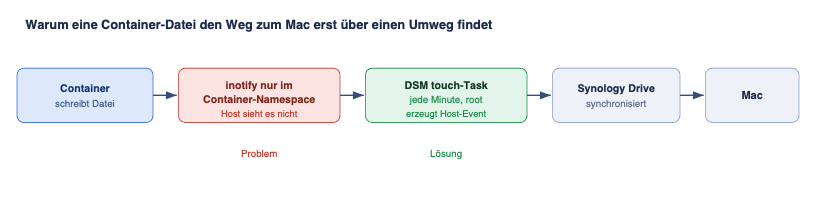
The solution is surprisingly simple: a mini-script on the NAS that “nudges” the freshly created proposals with touch, triggering a host-side event. Create the script:
sudo tee /volume1/docker/openclaw/scripts/touch-proposal-pending.sh > /dev/null << 'EOF'
#!/bin/bash
# Nudges new proposals so Synology Drive notices them at the host level.
DIR="/volume1/Vault/Privat/Inbox/30 proposals/31 pending"
[ -d "$DIR" ] && find "$DIR" -name "*.md" -mmin -5 -exec touch {} +
EOF
sudo chmod 755 /volume1/docker/openclaw/scripts/touch-proposal-pending.sh
Then set it up as a recurring task, step by step:
- Open DSM, then Control Panel → Task Scheduler.
- Create → Scheduled Task → User-defined Script.
- Tab General: task name
Proposal Drive Sync Touch, userroot. - Tab Schedule: run daily, then under Advanced Schedule set the frequency to every minute.
- Tab Task Settings → Run Command:
bash /volume1/docker/openclaw/scripts/touch-proposal-pending.sh - Save with OK and confirm the security warning.
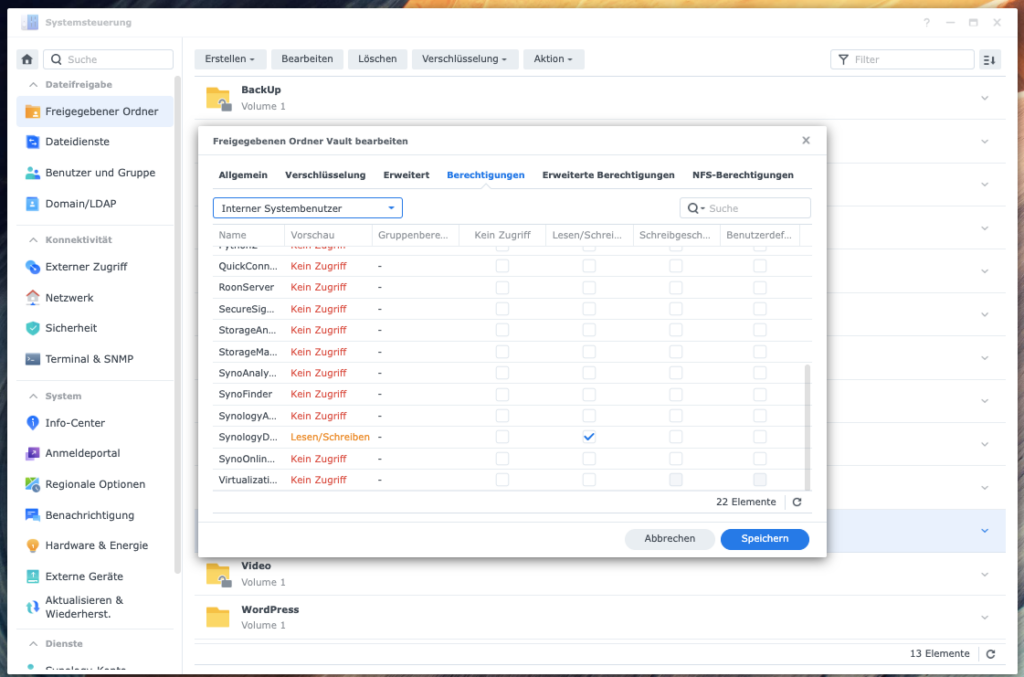
Expected result: Newly created proposals appear on the Mac within at most one minute. For this bidirectional sync to work at all, the internal Synology Drive system user must also have read and write permissions on the vault folder (DSM → Control Panel → Shared Folder → Vault → Permissions).
Phase 4 Fact-Check
Privat/is opened asymmetrically: read everywhere, write only in30 proposals.- The
index.jsonroutes proposals to the correct project; the lookup never blocks. write_vault_proposalcreates drafts,apply_vault_proposalsadopts them — both with the familiar security checks.- Approval is manual: drag the file from
31 pendingto32 approvedor33 rejected. - Apply only runs on request, with an idempotency check; the Drive touch task brings new files back to the Mac.
The Second Pillar: The Writer Agent with Claude MAX
Ulf: “Why can’t the fancy, expensive Claude write to the vault too?”
Tanja: “Because it runs via a detour where our security tools are invisible. So it gets its own space and no vault access at all.”
Bernd: “Two agents — how awkward.”
Tanja: “A playmaker and an archivist. Separation isn’t awkward here — it’s the solution.”
The previous part was about controlled writing to the vault. The second pillar of the system stands alongside it as an equal and deliberately doesn’t touch the vault at all: a dedicated Writer agent solely for demanding text work. It also elegantly resolves an architectural quirk. For demanding texts (articles, letters, analyses) you want to use the more powerful model Claude Sonnet/Opus via the Wende proxy from Level 2. The problem: this proxy routes requests through the Claude command line outside the OpenClaw runtime, making the custom plugin tools invisible to this model. A routing trick within the same agent doesn’t work technically.
The clean solution is separation rather than tricks: a second agent called openclaw-writer on its own port (18791), running claude-max-proxy/claude-sonnet-4 by default and having no vault tools whatsoever. It thinks and writes text, but it doesn’t touch the vault. The result is a clear two-agent architecture:
Bernd  (Port 18790) — Vault agent: gpt-5.4-mini + vault-capture + vault-proposal
                      → responsible for capturing and suggesting
Writer (Port 18791) — Premium text: claude-max-proxy/claude-sonnet-4, no vault tools
                      → responsible for text drafts, never writes to the vault
Here’s how to set it up.
Step W.1, create directories:
sudo mkdir -p /volume1/docker/openclaw-writer/config /volume1/docker/openclaw-writer/workspace
sudo chown -R 1000:1000 /volume1/docker/openclaw-writer
Step W.2, add a second service to the compose.yaml (not a single vault mount — this is intentional):
  openclaw-writer:
    image: ghcr.io/openclaw/openclaw:latest
    container_name: openclaw-writer
    restart: unless-stopped
    user: "1000:1000"
    ports:
      - "18791:18789"
    volumes:
      - /volume1/docker/openclaw-writer/config:/home/node/.openclaw
      - /volume1/docker/openclaw-writer/workspace:/home/node/.openclaw/workspace
    environment:
      - HOME=/home/node
Step W.3, minimal onboarding and setting up the Claude provider: Run a lean onboarding for this container (as in Level 1, without Telegram) and register the claude-max-proxy provider exactly as in Level 2; it points to the same Wende proxy on the NAS. Then set Claude as the default model:
sudo docker exec openclaw-writer node /app/openclaw.mjs models set claude-max-proxy/claude-sonnet-4
sudo docker exec openclaw-writer node /app/openclaw.mjs models status
Step W.4, store the delimiting SOUL.md:
sudo tee /volume1/docker/openclaw-writer/workspace/SOUL.md > /dev/null << 'EOF'
# Premium Text Agent (Writer)

You are the writing agent for demanding texts: articles, letters,
position papers, analyses. You work exclusively with text.

Strict limits:
- You have NO vault tools and write NOTHING to the vault.
- You deliver text drafts exclusively in the response.
- Capture and proposals are handled by the separate agent "Bernd".
EOF
sudo chown 1000:1000 /volume1/docker/openclaw-writer/workspace/SOUL.md
sudo chmod 0664 /volume1/docker/openclaw-writer/workspace/SOUL.md
Step W.5, start and verify:
cd /volume1/docker/openclaw && sudo docker compose up -d openclaw-writer
sudo docker exec openclaw-writer node /app/openclaw.mjs models status
Expected result: models status shows claude-max-proxy/claude-sonnet-4 as the default. Open the Writer web interface via an SSH tunnel on port 18791 (analogous to the web UI from Level 1) and send “Respond in one sentence and name your model.” The Writer agent responds via Claude Sonnet, without a single vault tool available to it.
Maintenance: The Small Rituals Against Big Disasters
A running system isn’t a finished system. These routines keep it healthy:
- Keep an eye on token expiry. The login sessions for Claude (via the CLI) and ChatGPT (OAuth) expire without warning after a few weeks. How to renew them is covered in Level 2. A calendar reminder every few weeks saves a lot of head-scratching.
- Unlock new project files. Every new project file created by the sync account needs a one-time
sudo chmod 666; otherwiseapply_vault_proposalscan’t write to it. - Never stage wholesale. In vault Git, never use
git add -A,git add ., orgit add Privat/. Due to missing traverse permissions onPrivat/, Git would incorrectly interpret entries as deleted and commit these “phantom deletions”. Always stage only explicit paths, e.g.vaultgit add OpenClaw-Bernd/Inbox/<file>.md. - Check after every write action.
vaultgit statusandvaultgit diffare your safety belt. Look first, then commit. - Know the emergency exit. In case of misbehavior: stop first, then analyze. Ignore the Telegram input, stop the container, save
vaultgit diff, and restore withvaultgit restoreif necessary.
What We Got Wrong
Three assumptions this project started with turned out to be wrong. They’re more valuable than any successful step, because they reveal where the real work lies when you reproduce this setup.
Bernd: “The hardest part of an AI project is obviously the AI.”
Tanja: “Kind of you to say that. In reality, nine out of ten problems were about file permissions, mounts, and sync.”
Ulf: “So not the brain, but the wiring in the stadium?”
Tanja: “Exactly. Let’s look at the three biggest misconceptions.”
It Wasn’t the AI That Was Difficult — It Was the Infrastructure
An estimated nine out of ten stumbling blocks had nothing to do with the model, but with file permissions, mounts, sync, container boundaries, and Git: the too-narrow tool profile that made a tool invisible; the file mode 0664 without which nothing synced; the inotify event that didn’t cross the container boundary; the Synology ACLs that overrode Unix permissions. Anyone reproducing this system isn’t fighting the intelligence — they’re fighting the infrastructure behind it.
Routing Is Not a Search Problem — It’s a Context Problem
Assigning a sentence to the right project sounds trivial, but requires experiential knowledge, context, and a knowledge architecture grown over years. The first, generous routing logic produced “false friends”: an “apollo” ended up at the wrong “Projekt Apollo”. The lesson was to forbid the agent from guessing and instead have it ask — rather than confidently getting it wrong.
A Successfully Running Tool Can Still Act Incorrectly
The proposal process became stable quickly. The real problem was the adoption. This became visible in the project file “Projekt Apollo”: the first apply run wrote the date in the wrong format, placed it as its own heading instead of under the existing ## Meetings: block, and condensed the content into three thin bullet points when one with substance would have been right. A subsequent run even wrote the same entry a second time. None of these failures were crashes — the code ran “successfully” every time. That’s precisely the point: technically correct does not mean functionally correct. A tool that flawlessly writes the wrong thing to the wrong place is more dangerous than one that visibly crashes. That’s why apply became an explicit manual action with rules for format, position, and condensation — and why the vaultgit diff afterwards remains mandatory.
Troubleshooting
| Symptom | Cause | Solution |
|---|---|---|
Bot responds to /capture but calls no tool | Tool not in the tool list | config set tools.allow '["write_inbox_note"]' --strict-json --merge |
| Plugin is “loaded” but tool remains invisible | Plugin not activated or registry outdated | plugins.entries.<id>.enabled true and plugins registry --refresh |
| Bot responds “Captured.” instead of filename | Small model paraphrases | Add blocklist to SKILL.md |
| New file doesn’t appear on Mac | File mode 0644 | Plugin sets chmod 0664; Drive system user needs write permission |
| Proposal is on NAS but missing on Mac | Container inotify doesn’t reach the host | Set up DSM task “touch” every minute |
| Claude model calls no plugin tools | Wende routes outside the OpenClaw runtime | Plugin work with gpt-5.4-mini; Claude via the Writer agent |
apply_vault_proposals reports write error (EACCES) | Target file belongs to sync account | sudo chmod 666 on project folders |
| Duplicate entry in a knowledge file | Run failed halfway | Idempotency check; long-term via unique marker |
vaultgit shows Privat/ files as “deleted” | Missing traverse permissions and wholesale staging | Never use add -A; only stage explicit paths |
| Tool import fails silently | Relative import path in plugin | Use absolute path: /app/dist/plugin-sdk/plugin-entry.js |
Result: A Second Brain with a Gatekeeper
What’s been built here looks unspectacular from the outside: you type a Telegram message and a note appears. You write a thought about a colleague and a clean draft waits for approval. No fireworks.
But that’s exactly the point. The real achievement lies in what does not happen: no existing note is secretly altered, no folder is autonomously “tidied up,” nothing ends up in a cloud model without control. Every write path is constrained at the kernel level, every intervention is visible and reversible in Git, every substantive decision remains with the human. The SOUL.md judges, the plugin executes safely, the Writer agent writes text without touching the vault.
And with that, a question to take away. The setup draws a clear line: the AI proposes, the human decides. But what happens when the Second Brain grows and the inbox fills daily with good, plausible, almost-always-correct drafts? At what point does the reviewing click become a routine — does “I decide” become “I rubber-stamp”? Technology can build the gatekeeper. Staying alert is up to us.
Ulf: “So technology builds the gatekeeper, and I still have to keep watch at the door?”
Tanja: “Exactly. The system makes the wrong thing hard and the right thing visible. Staying alert remains your job.”
Bernd: “I’ll just blindly trust the bot.”
Tanja: “And that’s exactly why, Bernd, we check the Git diff after every adoption.”
FOUNDIC.org is ad-free and has no paywall. If this guide helped you:  Treat us to a coffee